

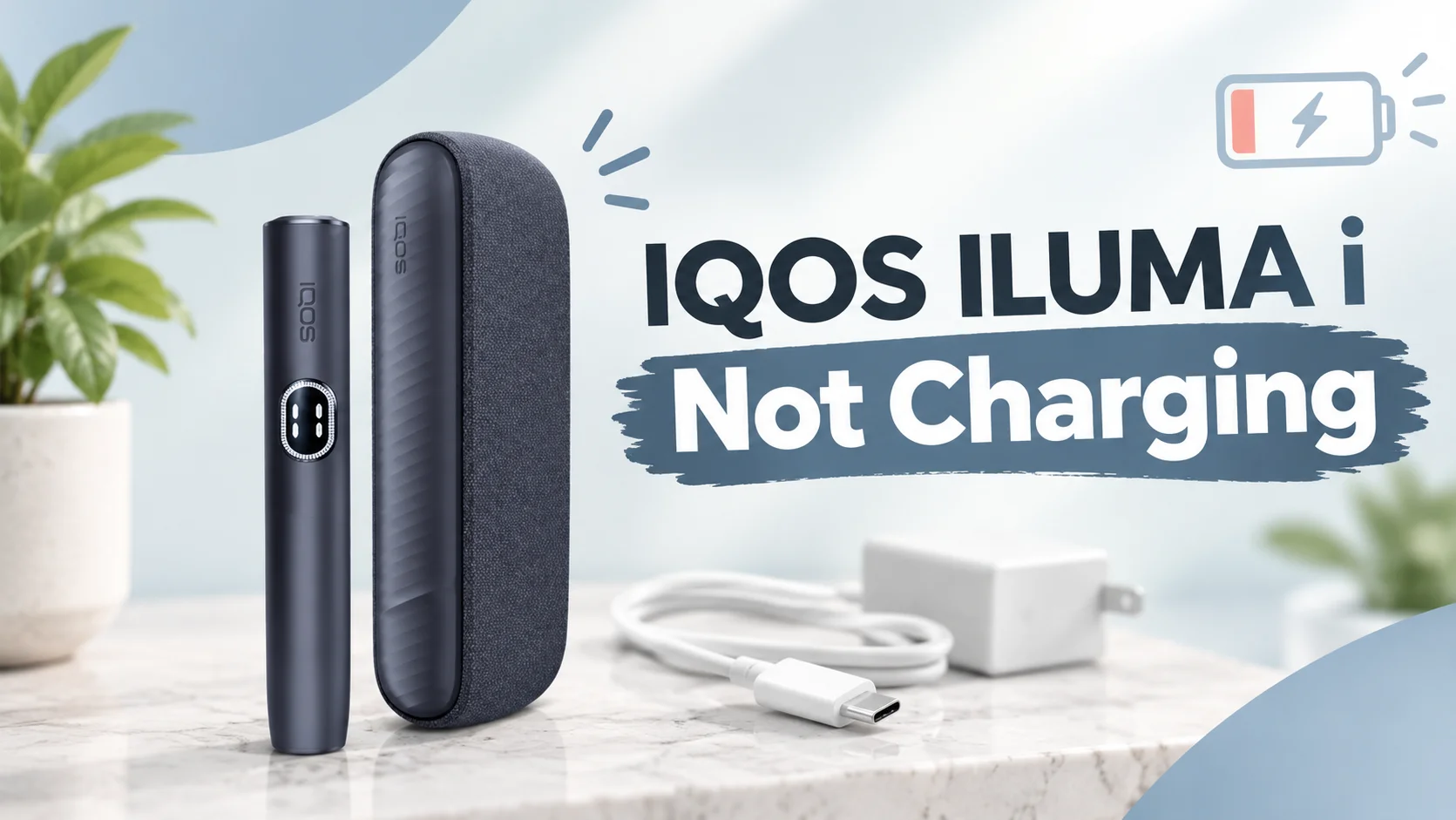
It is annoying when your IQOS ILUMA i will not charge. You expect it to work, and it does not. The good news is that many charging problems have simple causes.
This guide covers common causes, step-by-step fixes, red light and touch screen warnings, and model differences. It also covers resets, charging times, and when to stop troubleshooting.
Why Is Your IQOS ILUMA i Not Charging?
These are possible causes. Simple checks can help you find the likely one.
Faulty USB-C Cable or Power Adapter
- A worn cable can stop charging or slow it down.
- A loose plug can do the same.
- An unsuitable power source may also cause trouble.
- Check: Try another compatible cable and a different wall outlet.
Dust or Lint in the Charging Port
- Pocket lint can collect in the USB-C port.
- Dust can build up on the contacts between the holder and pocket charger.
- A small blockage may break the connection.
- Check: Wipe the holder and pocket charger contacts with a soft, dry cloth. Gently blow into the USB port to remove dust.
- Do not use liquids, metal tools, or toothpicks.
Temperature-Related Charging Problems
- The device may not work normally if it is too hot or too cold.
- A hot car is a common cause in the UAE.
- White blinking lights can mean the holder is outside its operating temperature range.
- Check: Let the device return to normal conditions on its own. Do not heat it quickly, chill it, or leave it in the sun.
Deeply Discharged Battery
- A very empty device may not respond right away.
- On the ILUMA i pocket charger, a charging pattern may take a while to appear (up to 20 minutes on some models).
- Check: Keep it connected for a while before you decide it has failed.
Temporary System Error or Frozen Touch Screen
- A software glitch can freeze the screen, lights, or button.
- A reset often clears this kind of problem.
- Check: Use the reset steps for your exact model.
Damaged Charging Port or Internal Battery Fault
- Signs include a bent connector, a cracked port, or repeated failures after a proper reset.
- Only IQOS support can confirm a hardware fault.
- Never open the device yourself.
How to Fix an IQOS ILUMA i Charging Problem
Follow these steps in order. Stop as soon as your device starts charging.
Check the power source
- Plug the charger into a wall outlet you know works.
- Make sure the wall switch is on.
- Test the outlet with another device if needed.
Inspect the USB-C cable and connection
- Look for bent ends, damage, or a loose fit on the cable and adapter.
- Never use a damaged cable.
- Swap in another compatible USB-C cable and adapter to test.
Clean the port and contacts
- Lint or dirt in the port can block the connection.
- Wipe the metal contacts with a soft, dry cloth.
- Gently blow into the USB port to clear dust.
If you see physical damage, stop and contact support.
Bring it to room temperature
- Extreme heat or cold can pause charging.
- Move the device to a normal indoor spot and let it rest for a few minutes.
- Do not use external heat, ice, or direct sunlight.
Give a low battery time to respond
- A fully drained device may not light up right away.
- Keep it connected and leave it alone.
On some models, lights can take up to 20 minutes to appear.
Check the holder and pocket charger
- Remove the holder and place it back in the correct direction.
- Make sure the metal connector sits firmly at the bottom.
- Check that the pocket charger lights up while charging.
Reset your device
- A reset can clear minor software errors.
- Place the holder in the pocket charger. Hold the pocket charger button for about 10 seconds.
- For the ILUMA i ONE, hold the ON/OFF button for 10 seconds instead.
- Look for the lights fading out and in again, or a vibration, to confirm the reset.
Observe the lights and screen
- Note the light colour, the pattern, and any touch screen message.
- Flashing lights can point to a specific issue.
- If red stays on after a reset, go to the next step.
Contact official IQOS support
- If it still won’t charge, stop troubleshooting.
- A battery or hardware fault is possible, but only IQOS support can confirm it.
- Tell them your model and the steps you already tried.
IQOS ILUMA i Red Light Charging Issue: What Does It Mean?
A red light means something needs attention. It is not always serious.
A red light on the holder or pocket charger can mean the device is not working properly. It can also mean a firmware update was interrupted or failed.
Other signals:
- Flashing white lights on the holder: the device may be outside its operating temperature range.
- Yellow light on the holder: no experiences available.
- Yellow strip light on the pocket charger: low battery.
- A flashing “0” on the touch screen (three times): the holder is discharged. Make sure the pocket charger has enough battery, then place the holder in it correctly.
For a red light, unplug the device and check for heat or damage. Then try the reset for your model. If red remains, contact official IQOS support.
Model-Specific IQOS ILUMA i Charging Troubleshooting
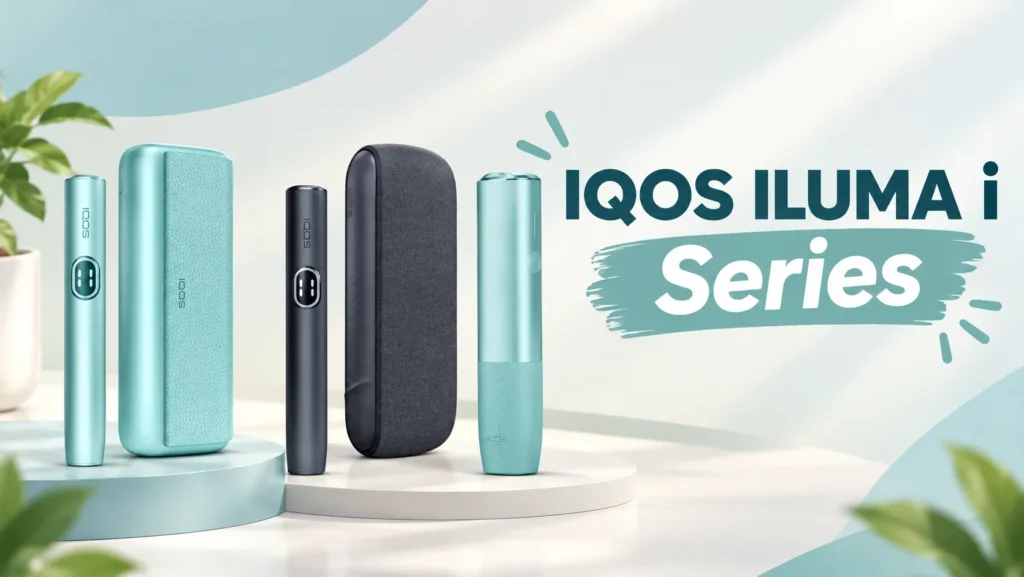
The ILUMA i range has an all-in-one model and two holder-and-pocket-charger models. Identify yours first.
IQOS ILUMA i ONE Not Charging
The ILUMA i ONE is an all-in-one model. There is no separate pocket charger. It charges through its own USB-C port, so the cable, adapter, port and temperature matter most.
For the ILUMA i ONE, if the lights come on but the device will not charge, the charging ports may need cleaning. Unplug it and make sure the ports on the device and cable are clean and dry. Charge with a compatible adapter for about 90 minutes. Four solid white lights indicate a full charge.
IQOS ILUMA i PRIME Not Charging
The ILUMA i PRIME uses a holder and a pocket charger. For the ILUMA i PRIME, if the holder’s lights do not turn on, check that the pocket charger has enough battery.
Clean the holder’s contacts. Place it in the right direction. Let it charge until at least one circular light on the charger is steady white. Then remove the holder and swipe up across the whole touch screen.
For model information, you can browse our IQOS ILUMA i PRIME.
IQOS ILUMA i Standard Not Charging
The ILUMA i Standard uses a holder and a pocket charger model with a touch screen. If the holder’s lights do not turn on, check that the pocket charger has enough battery.
Clean the holder’s contacts and place it in the right direction. Let it charge until at least one circular light on the charger is steady white. Then remove the holder and swipe up across the whole touch screen.
For model information, you can browse our IQOS ILUMA i Standard.
How to Reset an IQOS ILUMA i
A reset can help when the device is unresponsive, stuck on red, or ignoring the charger. It clears temporary software glitches. It cannot fix hardware damage.
ILUMA i Standard and ILUMA i PRIME: Place the holder inside the pocket charger. Then press and hold the pocket charger button for 10 seconds. The reset is confirmed when the strip lights fade in again, double blink, and the device vibrates.
ILUMA i ONE: Press and hold the ON/OFF button for 10 seconds. The reset is confirmed when the status lights fade in, blink twice fast, ramp up, and then show the charge level.
If the reset does not work, charge the device properly, then try once more. If it is still unresponsive, contact support.
How Long Does an IQOS ILUMA i Take to Charge?
Charging time depends on the model, battery condition, accessories, and power source. The pocket charger and the holder also charge separately. The holder charges from the pocket charger. The table below shows the charging time for each model.
Quick View:
| Device | Component | Charging Time | Notes |
| IQOS Iluma i (Standard) & IQOS Iluma i Prime | Pocket Charger | 135 minutes (2 hrs 15 mins) | Full charge from empty |
| IQOS Iluma i (Standard) & IQOS Iluma i Prime | Holder | 3-4 minutes | Recharges inside the pocket charger for one session |
| IQOS Iluma i One | All-in-One Device | 80-90 minutes | Full charge from empty; supports up to 20 consecutive sessions |
When Should You Contact IQOS Support?
Stop troubleshooting if you see any of these:
- A red warning light that will not go away
- No response after proper charging and the correct reset
- A visibly damaged port or connector
- Liquid damage
- Unusual heat, swelling, or a burning smell
- Repeated charging failure
Stop using and charging a device that looks damaged or feels dangerously hot. Do not open it. Do not try to replace its battery.Contact IQOS support for repairs, replacements, or warranty claims.
Tips to Prevent Future IQOS ILUMA i Charging Problems
- Use compatible charging accessories.
- Keep accessible charging connections clean and dry.
- Protect the device from water and drops.
- Avoid direct sunlight and hot cars.
- Follow the manufacturer’s charging and storage instructions.
- Do not ignore warning lights that keep returning.
These habits can lower common risks.
Frequently Asked Questions About IQOS ILUMA i Charging Problems
Why is my IQOS ILUMA i not charging when plugged in?
The usual causes are a faulty cable, an unsuitable adapter, dirty contacts, or temperature protection. Try another compatible cable and a different wall outlet. Clean the contacts with a dry cloth, then reset the device if the problem continues.
How do I fix an IQOS ILUMA i charging problem?
Start with the outlet, cable and adapter. Check that the holder sits correctly in the pocket charger. Clean the contacts, let the device reach a normal temperature, and try the reset for your model. Contact support if it still fails.
What does a red light mean on IQOS ILUMA i?
A red light signals a problem. It can mean a malfunction or an interrupted update. Try a reset first. If the light stays red, contact official support.
Why is my IQOS ILUMA i flashing red while charging?
It may be a temporary software error or another fault. Unplug the device and check that it is not hot or damaged. Then reset it using the steps for your model. A flashing red light that continues needs official help.
How do I reset my IQOS ILUMA i?
For the ILUMA i and i PRIME, place the holder in the pocket charger and hold the pocket charger button for 10 seconds. For the ILUMA i ONE, hold the ON/OFF button for 10 seconds. Look for the confirmation lights.
Why is my IQOS ILUMA i ONE not charging?
Check the cable, adapter, outlet, and USB-C port for dirt or damage. IQOS says the ports on both the device and the cable should be clean and dry. If the lights are on but it will not charge, try the 10-second reset.
Why is my IQOS ILUMA i holder not charging?
First check that the pocket charger has power and enough battery. Then clean the contacts on the holder and charger. Place the holder in the correct direction. A flashing “0” on the screen means the holder is discharged.
Can a faulty USB-C cable stop my IQOS ILUMA i from charging?
Yes. A damaged or unsuitable cable can stop charging or slow it down. Try another compatible cable and adapter before you assume the device is faulty.
Final Thoughts
If your IQOS ILUMA i is not charging, do not panic right away. Start with the simplest checks first test your cable, verify the power outlet, clear out any pocket lint, and make sure the device hasn’t overheated.
Based on our experience in the UAE market, most charging problems stem from extreme indoor-outdoor temperature shifts or basic dust buildup in the USB-C port rather than permanent hardware failure. Following the step-by-step checks and using the correct reset combination for your specific model usually gets the device working again.
However, if a stubborn red light persists or your device feels abnormally hot, play it safe. Stop troubleshooting immediately and reach out to authorized IQOS support for repair or replacement options under warranty.